


Getting Started with ParadeSmart: How to Add Builders & Homes
A step-by-step guide for new clients and returning organizers alike
Learning how to add builders and homes in ParadeSmart is one of the first things you’ll do as a new client, and it’s easier than you might think. This guide walks you through logging in, setting up your builders, connecting them to homes, and hiding content until you’re ready to go live.
Step 1: Log Into the Dashboard
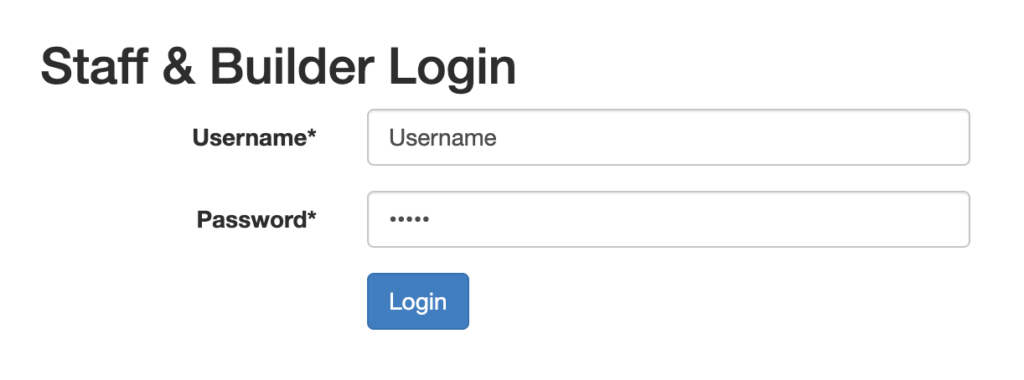
Head to https://app.paradesmart.com/accounts/login/ and enter your username and password. The ParadeSmart team provides these when your account is set up. If you’re unsure of your credentials, reach out to support@paradesmart.com and we’ll get you squared away.
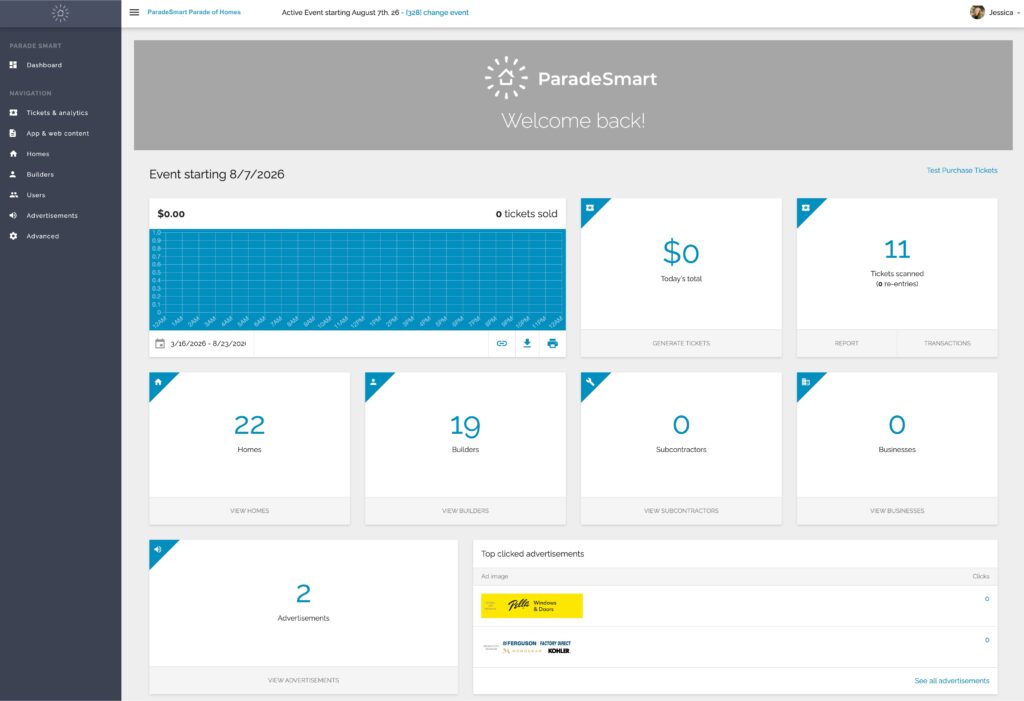
Once you’re in, you’ll see a sidebar on the left with everything you need to manage your event.
Step 2: How to Add Builders in ParadeSmart
This is the most important thing to know before you start: builders need to be in the system before you can add homes. Each home gets connected to a builder, so setting those up first saves you from having to go back and make edits later.
Here’s how to add a builder:
- Click Builders in the left sidebar
- Next, click the Create button in the top right corner
- Fill out the builder’s information, including their name and any profile details you have
- If you want the builder to have their own login so they can scan tickets and manage their home during the event, set a simple password for them here
- Scroll to the bottom and click Save
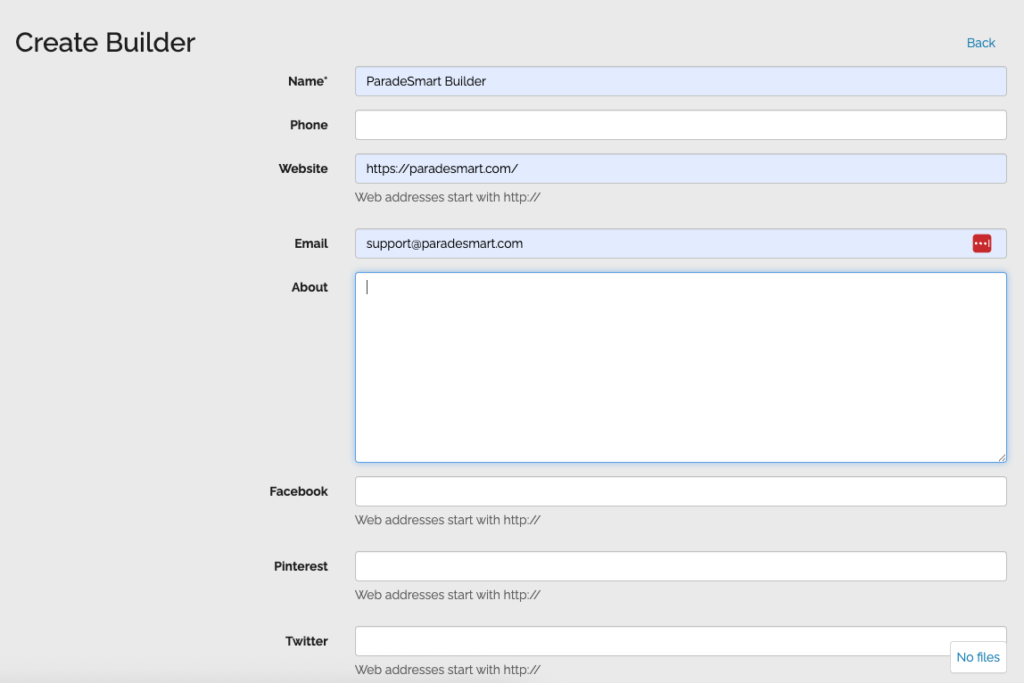
Tip: Builder logins are created automatically when you create a builder profile. You do not need to create a separate user for them. Just add a password and pass those credentials along to your builder when the time comes.
Tip: Builder profiles only show up in the app if you have an About section or a logo added. It does not need to be elaborate, but having at least one of those filled in makes a difference.
Step 3: Add Your Homes and Connect Them to a Builder
Once your builders are added, the next step in setting up ParadeSmart is creating your homes and linking them together.
Here’s how:
- Click Homes in the left sidebar
- From there, click Create in the top right corner
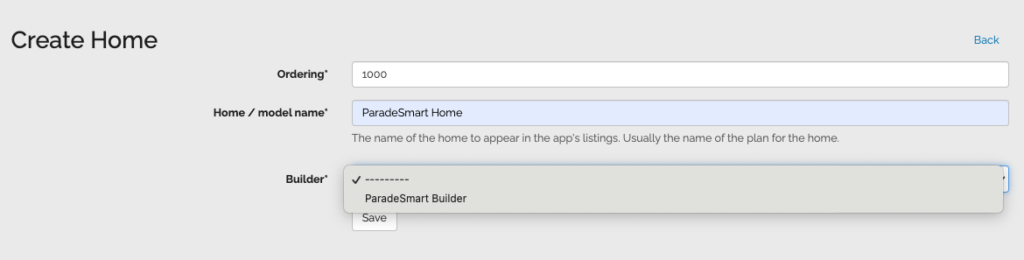
- Give the home a name and set the ordering (this controls where it appears in the list)
- Connect the home to a builder using the builder field
- Lastly, select Save
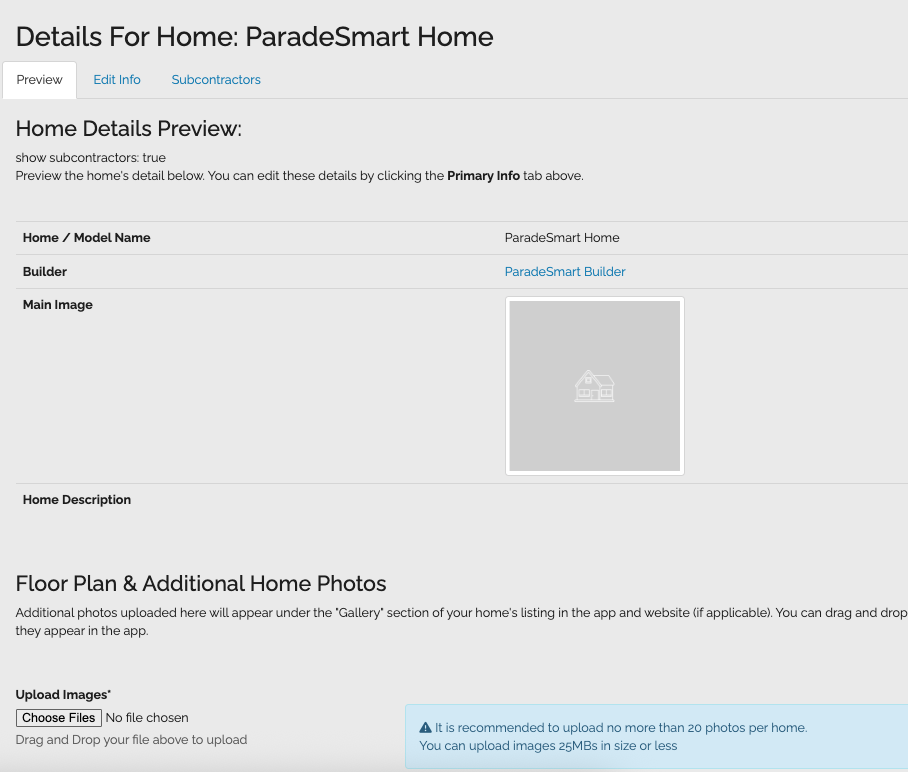
After saving, you’ll land on the home’s full profile page. This is where you can add photos, a description, traits like square footage or bedroom count, and GPS coordinates for the map. Take your time filling these out, and remember to hit Save again after making any updates.
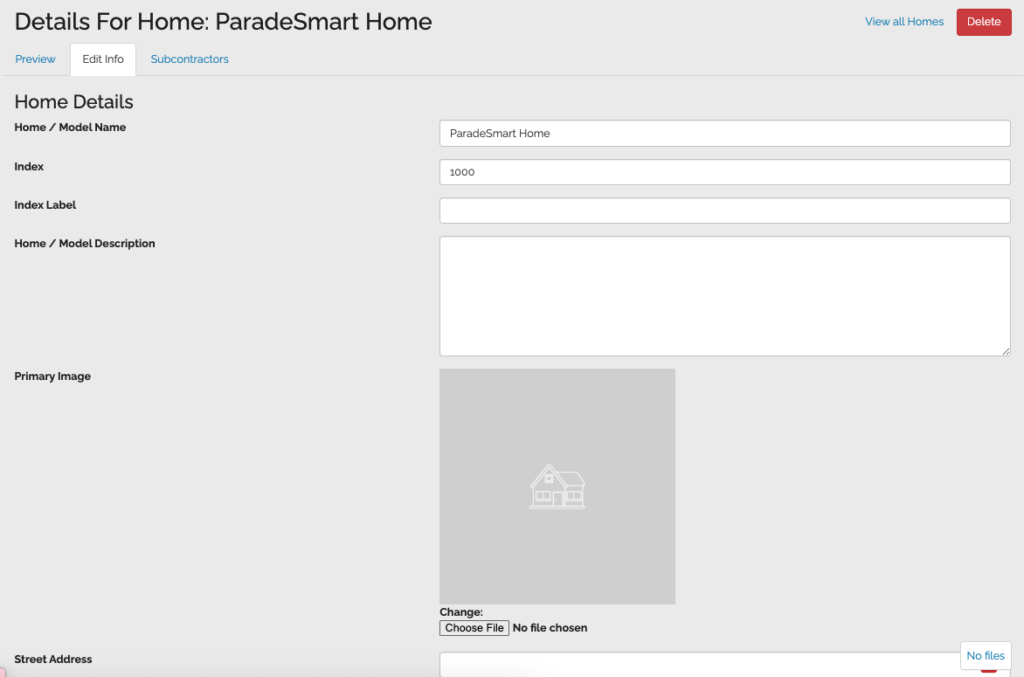
Tip: You can go back and edit a home as many times as you need. You can change anything after saving.
Step 4: Hide Homes Until You’re Ready
You do not have to make homes public right away. You can mark any home as hidden so it does not appear on your website or in the app until you’re ready to show it.
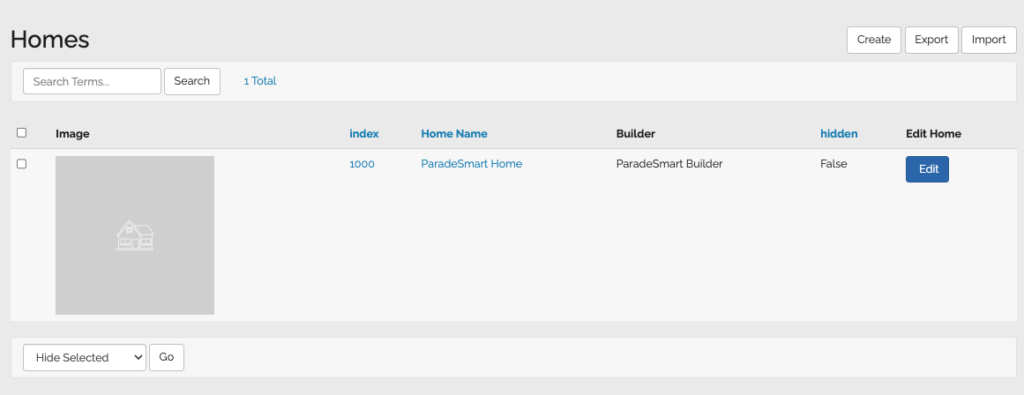
To hide or unhide a home, go to the Homes tab in the sidebar. On the right side of each row, you’ll see a column labeled Hidden. If it says False, the home is visible. If it says True, it is hidden.
If you need to update several homes at once, you can check the boxes on the left side of the list, scroll to the bottom, and use the dropdown to hide or unhide all selected homes at the same time.
This is a great way to build out all your content in advance and then flip everything live when you’re ready for the public to see it.
Need Help Getting Started?
If you have questions about how to add builders and homes in ParadeSmart, our team is always happy to help. You can also find video walkthroughs and additional guides in our General Information Manual. Reach out anytime at support@paradesmart.com.