


How to Set Up Voting and People’s Choice Awards in ParadeSmart
Setting up People’s Choice voting for your Parade of Homes is one of the most engaging features you can add to your event. Whether you keep it simple with a single category or build out a full awards program, voting gives attendees a reason to stay engaged and gives builders something to celebrate at the end of the event.
If you have ticketing with ParadeSmart, voting is already available to you. Here’s how it works and how to get it set up.
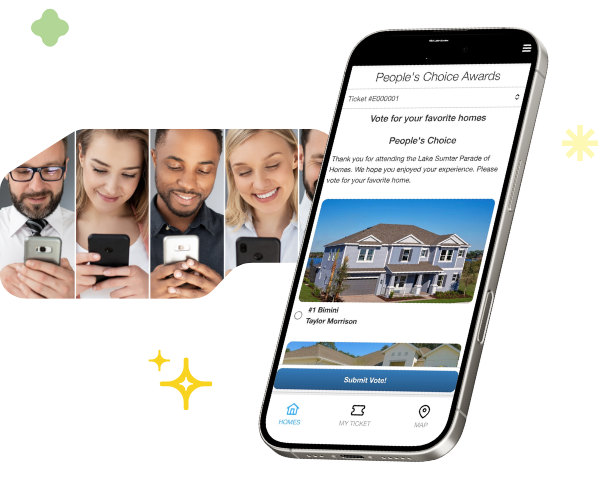
Why Add Voting to Your Event?
Voting creates a fun, competitive element that keeps visitors invested in the homes they tour. Builders love it because it gives recognition beyond just foot traffic. HBAs love it because it drives engagement and gives attendees something to talk about. It’s a small addition that adds a lot of energy to your event.
Step 1: Let ParadeSmart Know You Want Voting
Before you can configure People’s Choice voting in your Parade of Homes manager, reach out to the ParadeSmart team to get it enabled.
When you do, let us know your preferences for the following voting restrictions:
- Minimum number of homes a visitor must visit before they can vote
- Whether visitors can only vote for homes they personally visited
- How many days after the event closes that voting will remain open
These settings help you run a fair, intentional voting experience rather than a free-for-all.
Step 2: Set Up Your Voting Categories
Once voting is enabled, you can add your categories in the Web Manager.
- Go to Advanced in the left sidebar
- Scroll down and click Voting Categories
- Click Create to add a new category
- Fill in the category details:
- Name your category, such as People’s Choice, Best Kitchen, Best Exterior Design, or Best Floor Plan
- Add an optional description that will appear below the category on the voting page
- Set the ordering to control which category appears first
- Check or uncheck Active to control whether the category is currently visible to voters
- Manually select the homes that are eligible to be voted on in that category
- Click Save
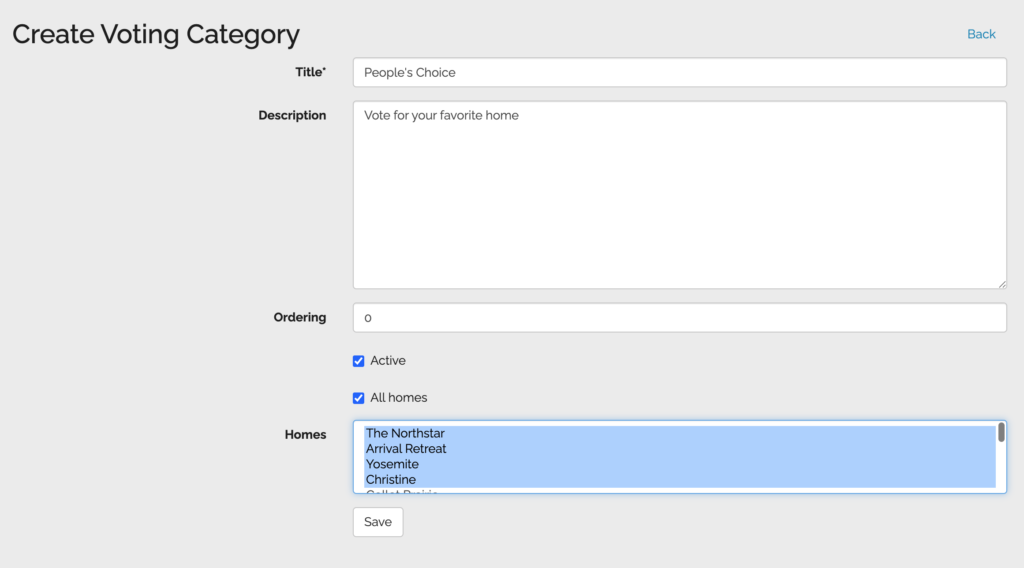
Tip: Even though there is an “All Homes” checkbox in the category form, manually highlight the homes you want included. This ensures the right homes appear for each category.
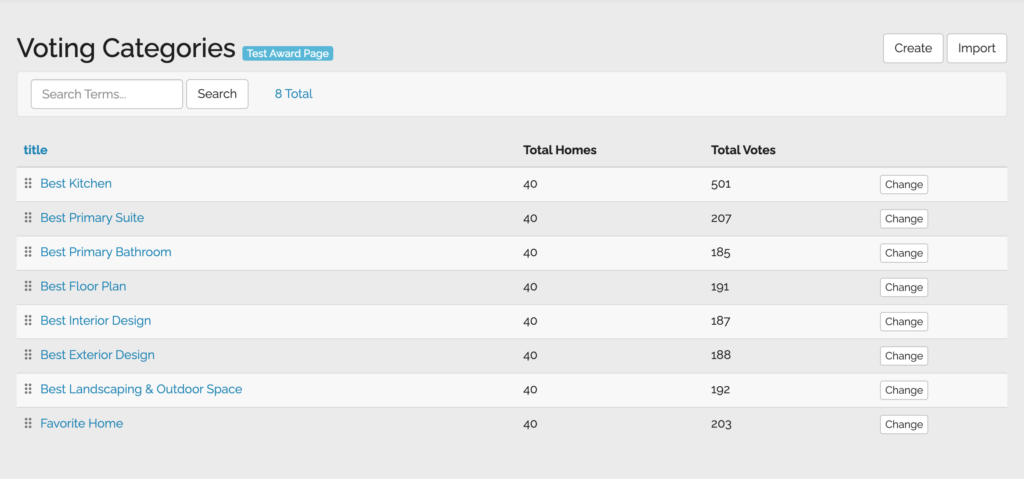
Tip: You can create as many categories as you want. Some events keep it simple with just one People’s Choice award. Others set up a full awards program with categories like Best Primary Suite, Best Landscaping, Best Interior Design, and more. There is no limit.
Step 3: Preview Your Voting Page
Once your categories are saved, click the blue Test Award Page button at the top of the Voting Categories list. This lets you see exactly what visitors will see before the event goes live, so you can catch any issues early.
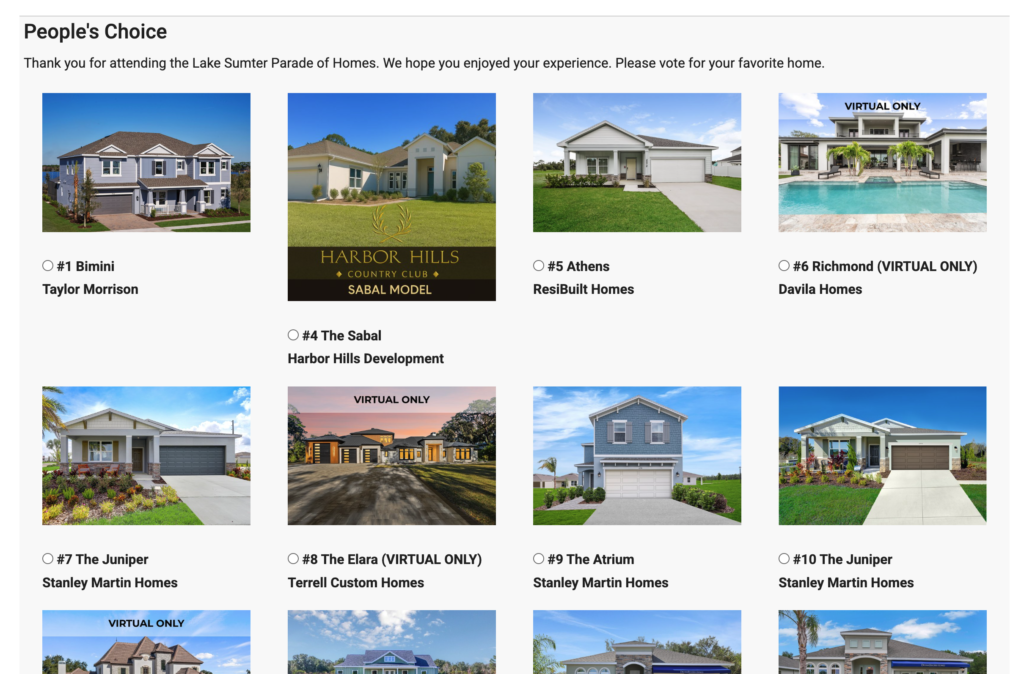
Step 4: Add Voting to Your App and Website Menu
You can ask the ParadeSmart team to add a Vote or People’s Choice link to your app and website menu at any time. You can also share the voting page directly by adding /web/awards to the end of your event domain name.
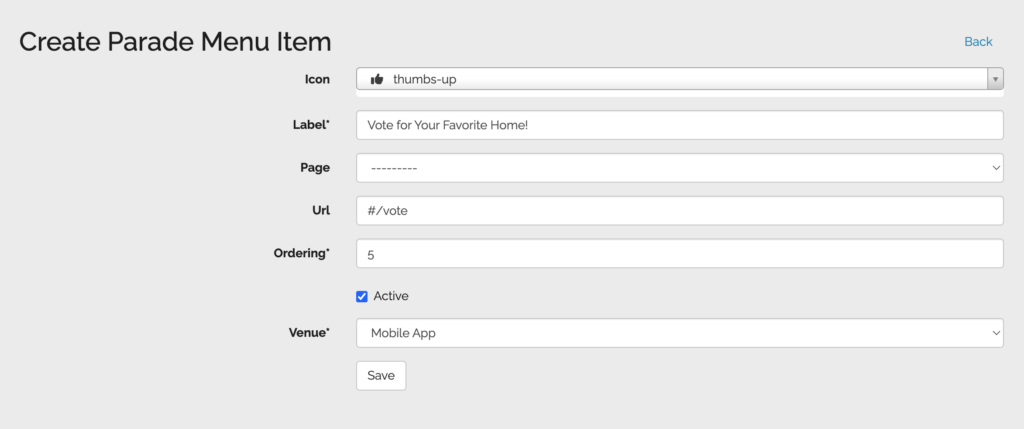
If you’d like to add the voting menu item to your app yourself, here’s how:
- Go to Advanced in the sidebar
- Click Parade Menu Items
- Click Create
- Enter #/vote as the URL
- Set the venue to Mobile App
- Add a name such as Vote or People’s Choice
- Pick an icon
- Click Save
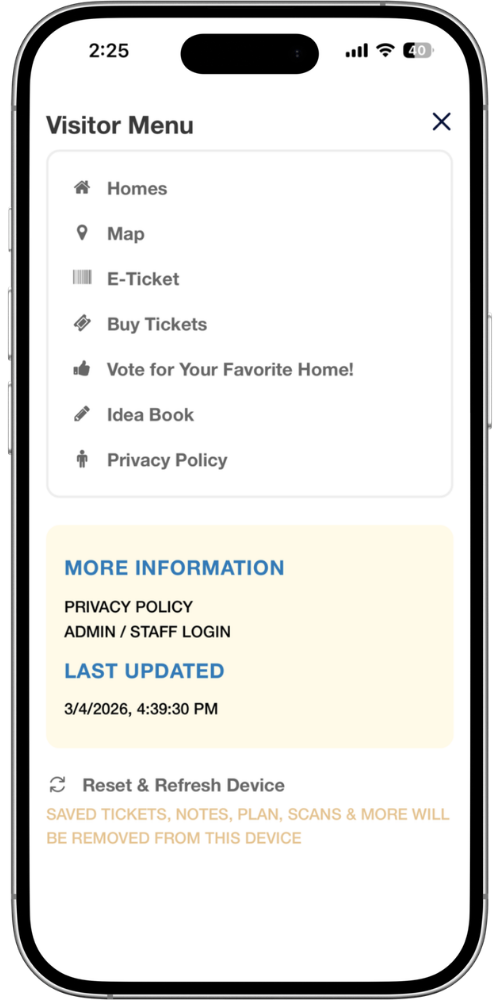
The voting link will now appear in your app menu for attendees to find easily.
Step 5: Add a Thank You Page After Voting (Optional)
If you want to leave visitors with a nice moment after they submit their vote, you can create a custom thank you page. This is a great place to feature your People’s Choice sponsor, add a message of appreciation, or share event details.
To set it up, go to App and Web Content in the manager, create a new page with the slug /awards/success/, and add whatever content you’d like. ParadeSmart will automatically show this page to visitors right after they vote.
How Visitors Cast Their Vote
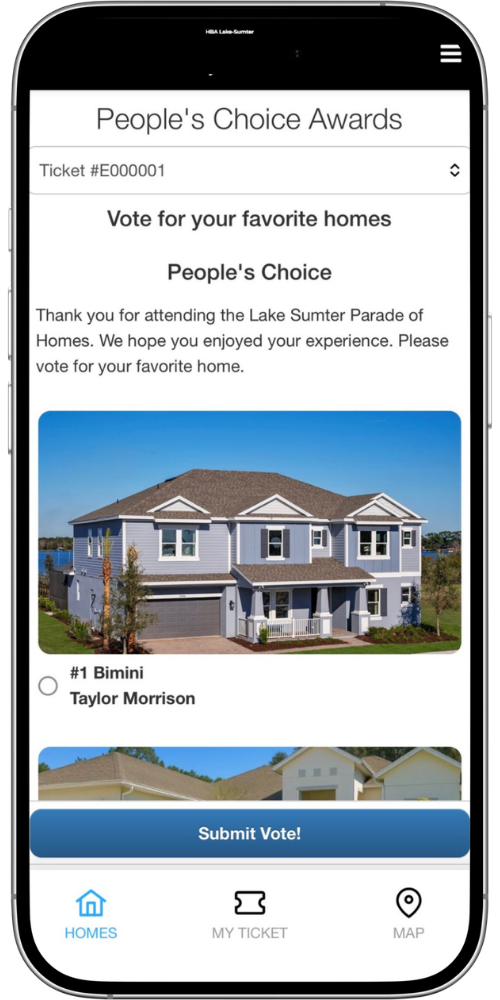
Visitors can vote through the app or on your event website. If a visitor already has their ticket registered in the E-Ticket section of the app, they can vote without any additional steps. If they have not registered their ticket yet, they will be prompted to do so before voting.
On the website, visitors register their ticket first and then access the voting page.
Viewing Your Results
You can check vote totals at any time during or after the event.
- Go to Advanced in the sidebar
- Click Voting Categories
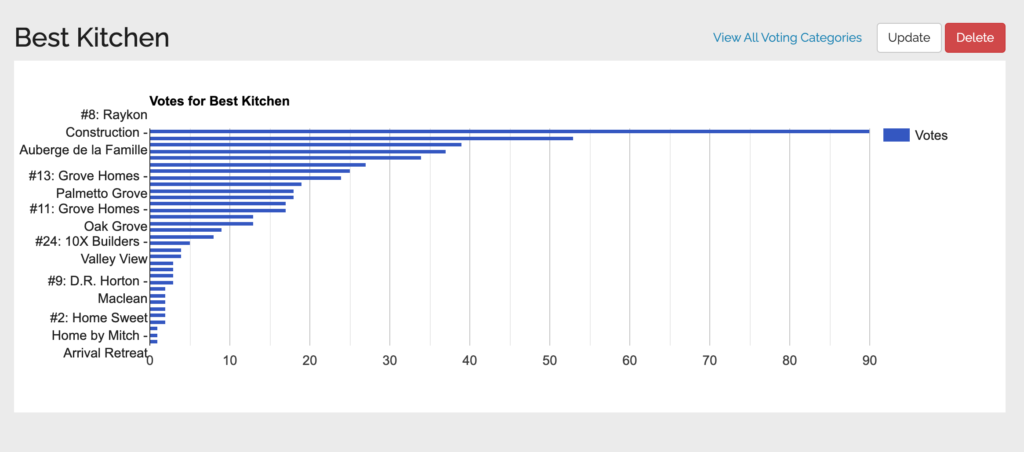
- Click the name of any category to see a graph of votes by home
- Hover over any point on the graph to see the exact number of votes
Only homes that received at least one vote will appear on the graph. If a home is not shown, it did not receive any votes during that period.
Ready to Add Voting to Your Event?
If you are ready to add People’s Choice voting to your Parade of Homes event, email support@paradesmart.com and we’ll get it enabled and walk you through any questions. If you’d like the full documentation, you can also find our complete voting guide in our resources.