Any client has the ability to add links to the menu in their app, or deactivate links they don’t want.
- Go into the manager’s page under advanced, “parade menu items” (https://parade.velocitywebworks.com/manage/menu )
- Feel free to drag and drop the menu items in the list to change the order they will appear in your app.
- You can see the access labels in the list.
- Blue “app” items are visible to everyone on the app.
- Red “admin” items are hidden to only people with a log in and under the admin section of the menu. The order still reflects in the app, but is only seen inside that section.
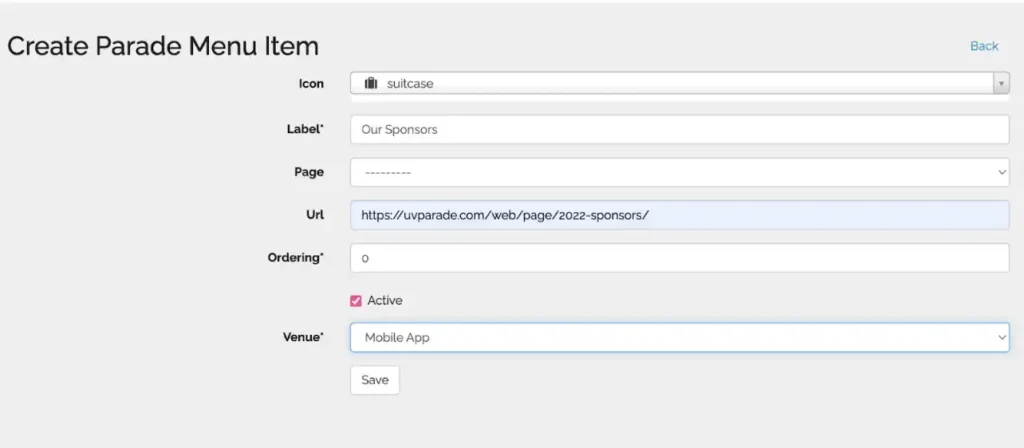
- To add a menu item
- Click “create” and add the desired info below including the label for the link and the hyperlink
- Page and ordering can be left as is
- The venue allows you to add the link to your menu in the mobile app, or under the admin area (so you can only see the link when logged in as a volunteer/builder/admin). We don’t currently recommend using the website feature here (contact for more info).
- Always be sure to save when done.
- To remove a menu item
- Click the name of any link you want to edit. Uncheck the active box if you don’t want this link anymore.