
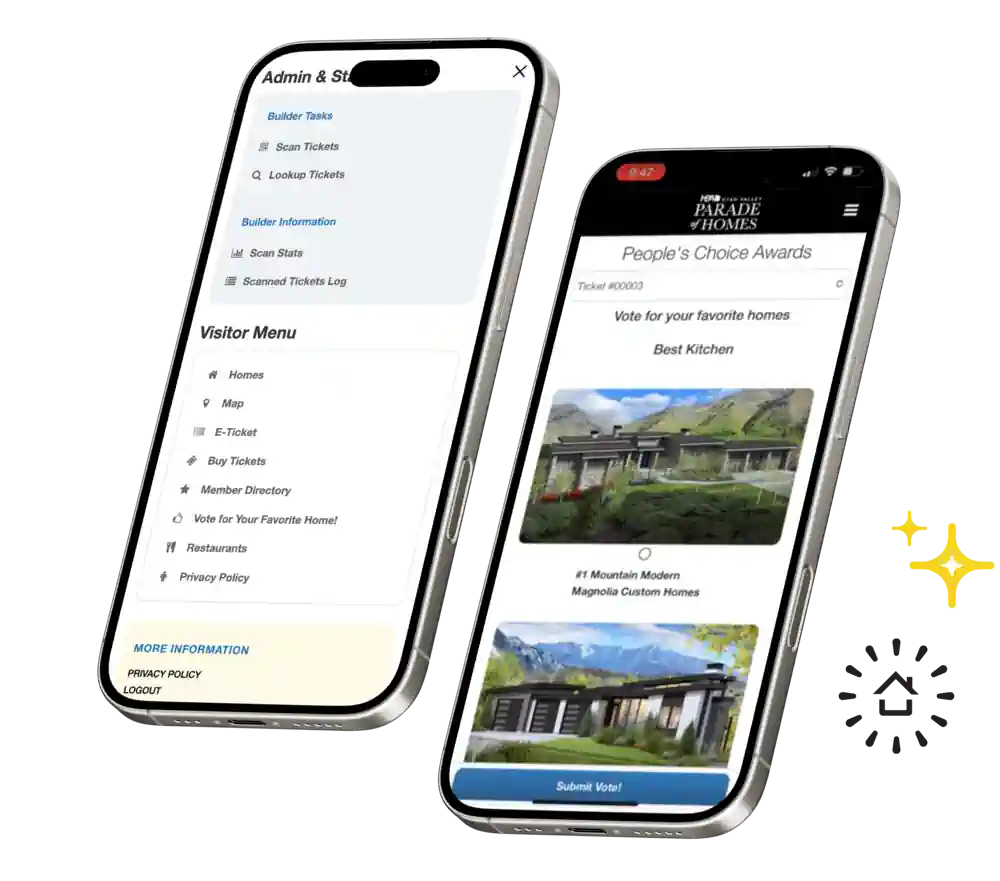
Any client with ticketing can have their visitors vote for homes in your event, in as many categories as you wish.
For more information and tips about voting in your event, check out this article.
About Voting #
Voting creates a fun, competitive element that keeps visitors invested in the homes they tour. Builders love it because it gives recognition beyond just foot traffic. HBAs love it because it drives engagement and gives attendees something to talk about. It’s a small addition that adds a lot of energy to your event.
Voting Settings #
- If you haven’t already, fill out the voting section in the TICKETING FORM to inform the ParadeSmart team of your desired awards settings.
- Minimum homes visited required to vote
- Only allow voting on homes that were visited
- Days after the event has finished that voting will be closed
Voting Categories #
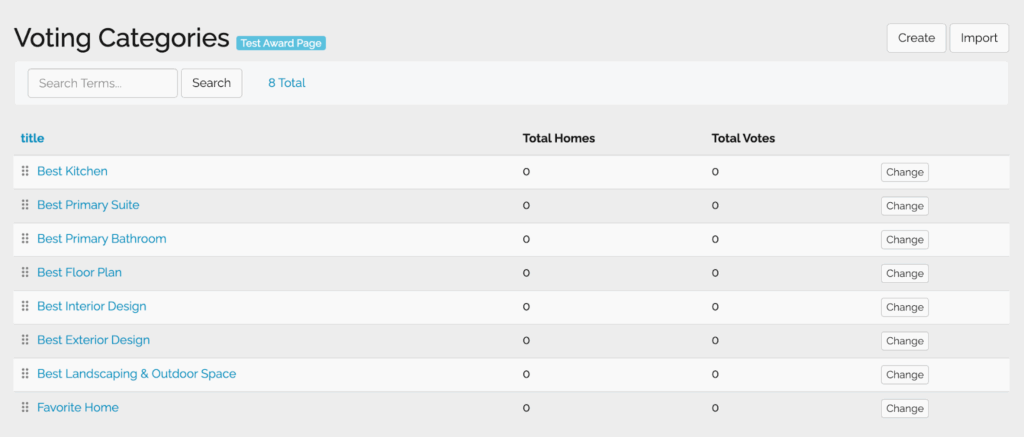
- Go to the ParadeSmart manager
- Click “Advanced”, scroll down and click “Voting Categories”
- Click the “Create” button in the top right corner
Some events have one category for voting (such as “people’s choice”) or as many categories as they wish (like best kitchen, interior design, garage vendors, furniture, landscape, over $2Million, etc.)
- Fill out the form
- Name of your Category (like People’s Choice)
- Description is optional. It will show up below the voting category to give any helpful information.
- Ordering numerically lists all your categories. If you want it to be the first thing they vote for, list as 1.
- If you don’t want your category to show live, then uncheck “active.” You can use this to turn categories on and off at any time.
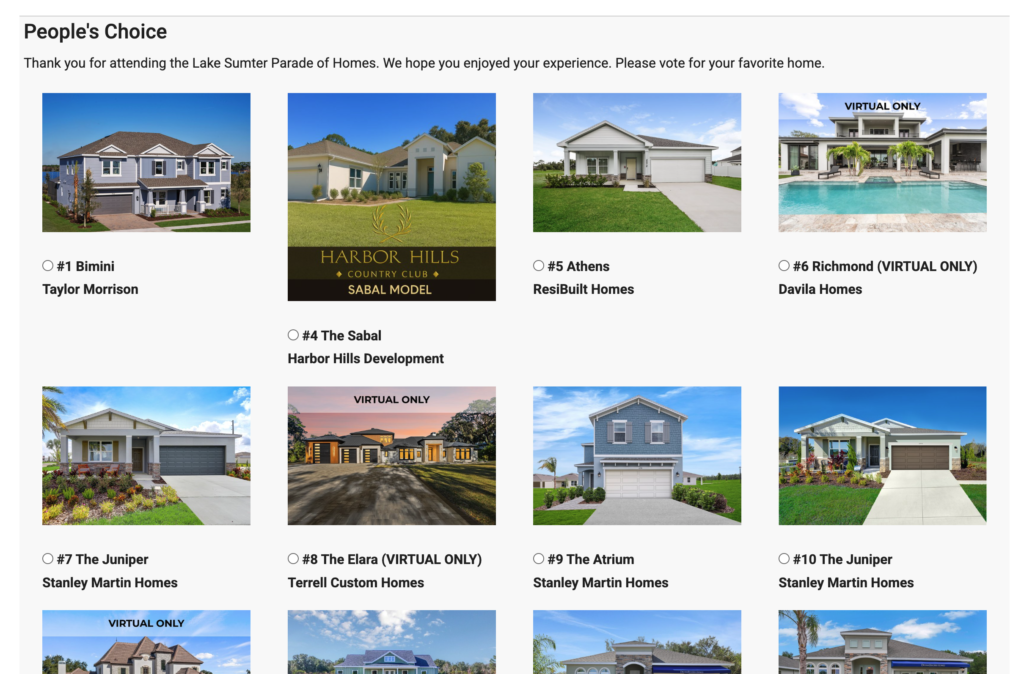
- Despite the All homes checkbox, please highlight all the homes you wish to be eligible for votes in this category. This could be 2 homes or all homes.

Preview Your Voting Page #
Once your categories are saved, click the blue Test Award Page button at the top of the Voting Categories list. This lets you see exactly what visitors will see before the event goes live, so you can catch any issues early.
Add Voting to Your Website #
- Contact the ParadeSmart team to add a “Vote” or “People’s Choice” link to your website.
- Add “/web/awards/” to the end of your domain name to reach your voting page.
Optional Confirmation Page #
A voting confirmation page will show after someone successfully submits a vote. If you choose not to set one up, the visitor will see a simple confirmation sentence.
Create a Confirmation Page #
- Go to the ParadeSmart manager
- Click “App & Web Content“
- Click the “Create” button in the top right corner.
- Name it anything you want. Add your desired text and images.
- Click “save.”
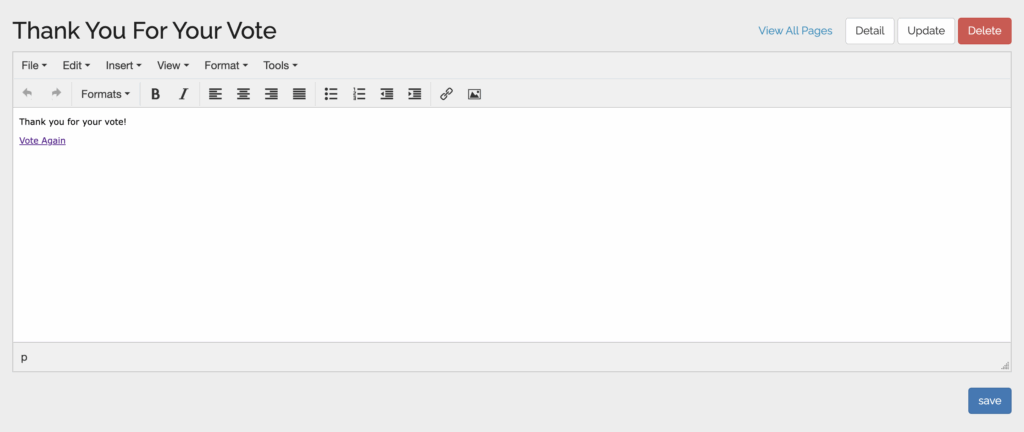
- Click the “update” button in the top right corner.
- Change the “URL” to “/awards/success/” and save.


