
New features, a cleaner sidebar, and no more digging through Advanced
The ParadeSmart Dashboard has a new look. You’ll still log in at app.paradesmart.com/manage with the same username and password, and every change you make still updates your app and website at the same time.
What’s different is how much easier everything is to find. We’ve added new tools you’ve been asking for, pulled everything out of the Advanced menu, and given every page a clear name and a clear place in the sidebar.
What’s new
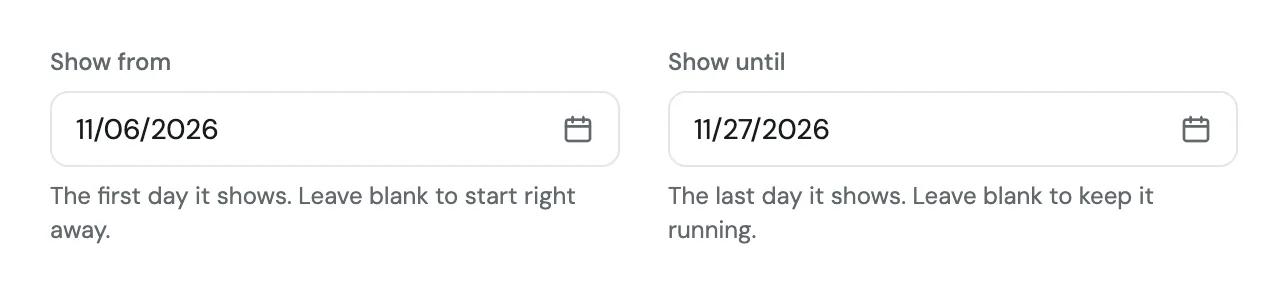
Set the dates an ad runs. Several HBAs asked for this one. Fill in Show from and Show until on an ad, and it shows up and comes down on its own. No more remembering to switch a sponsor’s ad off when their run ends.
Push Notifications, brand new. Send a message to everyone who has your event app, schedule it ahead of time, and choose what opens when someone taps it. Your Automatic Vote Notification lives here too, and the Push Notification Clicks report shows how many people opened each one. Push notifications are an extra feature, so if you’d like to add them to your event, email support@paradesmart.com and we’ll get you a quote.
A new App Downloads report. See daily downloads of your app from the App Store and Google Play, right next to your other reports. It’s a great number to share with your board and your sponsors.
Better reporting. Every report now lives on one Reports page, grouped into Ticket Sales, Scans & Visits, Visitor Demographics, Engagement, and Exports. Each one has a short description of what it shows, the same date filter, and an Export button in the same place. A few reports got clearer names too, like Tickets per Order (was Sales by Order) and Voting Results (was Award Votes).
A new Home Stats page. Click Homes, then Home Stats right under it, to see visits and scans for every home. It has an Export button, so the home-by-home report your board asks for is one click away.
Manage Tickets. Click Tickets, then Manage Tickets right under it, to send the tickets from a big order on to each guest by name and email. Orders of 10 or more tickets show up there automatically.
Test your ticket sales page. Click Tickets, then the Test Ticket Sales Page button at the top, to walk through buying a ticket the way your visitors will.
Voting results at a glance. The Voting page shows who’s leading each category and lets you filter by category, so you can check on your People’s Choice Awards without exporting anything.
A confirmation before anything is deleted. Every delete button now asks “Are you sure?” first.
Everything that was hiding in the Advanced menu
If you’ve been with us a while, you know the Advanced menu. It held more than 30 pages, from Traits to Ticket Batches to Push Notifications, all tucked inside one gear icon at the bottom of the sidebar.
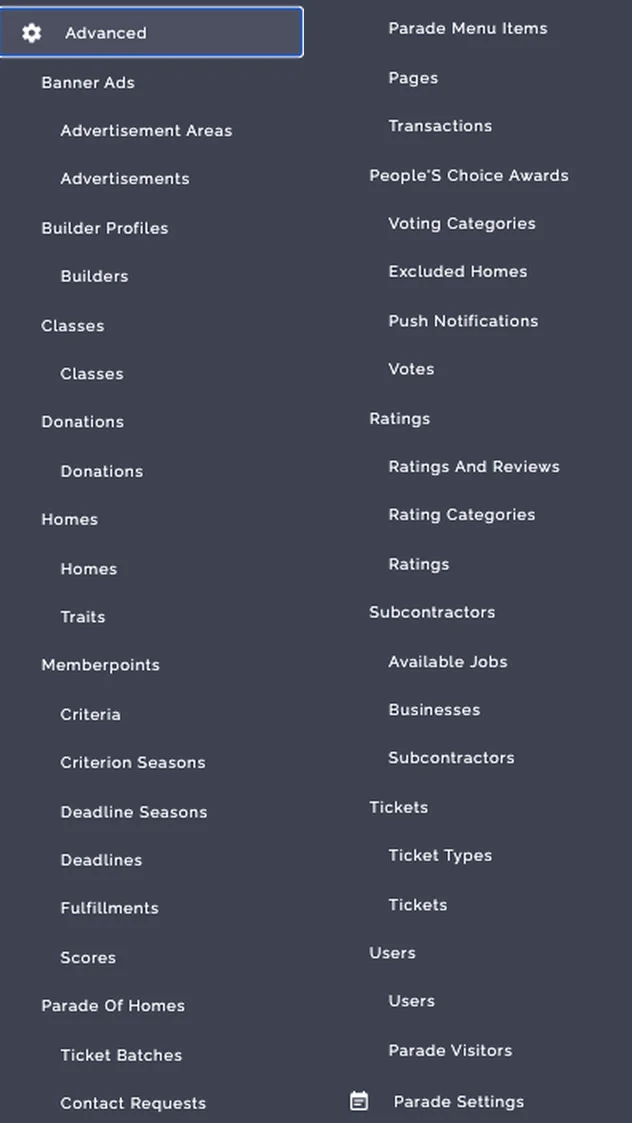
The Advanced menu is gone. Everything in it now lives with the feature it belongs to:
| It used to be in Advanced | Now you’ll find it under |
|---|---|
| Subcontractors | Subcontractors |
| Available Jobs | Subcontractors › Trades (now called Trades) |
| Businesses | Businesses |
| Tickets and Ticket Types | Tickets and Tickets › Ticket Types |
| Ticket Batches | Tickets › Printed Ticket Generation (now called Printed Ticket Generation) |
| Transactions | Tickets › Transactions |
| Donations | Tickets › Donations |
| Pages | Content (your list of pages shows up) |
| Parade Menu Items (your app menu) | Content › App Menu (now called App Menu) |
| Traits (extra fields on your homes) | Homes › Traits |
| Votes | Voting |
| Voting Categories | Voting › Voting Categories |
| Excluded Homes | Voting › Excluded Homes |
| Push Notifications | Push Notifications (an extra feature; contact support for a quote) |
| Ratings and Reviews | Ratings |
| Rating Categories | Ratings › Rating Categories |
| Contact Requests | Builders › Contact Requests |
| Memberpoints | Builders (Criteria, Criterion Seasons, Deadlines, Deadline Seasons, Scores, Fulfillments, and Member Point Rankings, only if your event uses member points) |
| Users and Parade Visitors | Staff Accounts (Users) and Reports › Visitors (Parade Visitors) |
What it’s called now and where to find it
The sidebar is now grouped into four sections, so you can find things by what you’re trying to do.
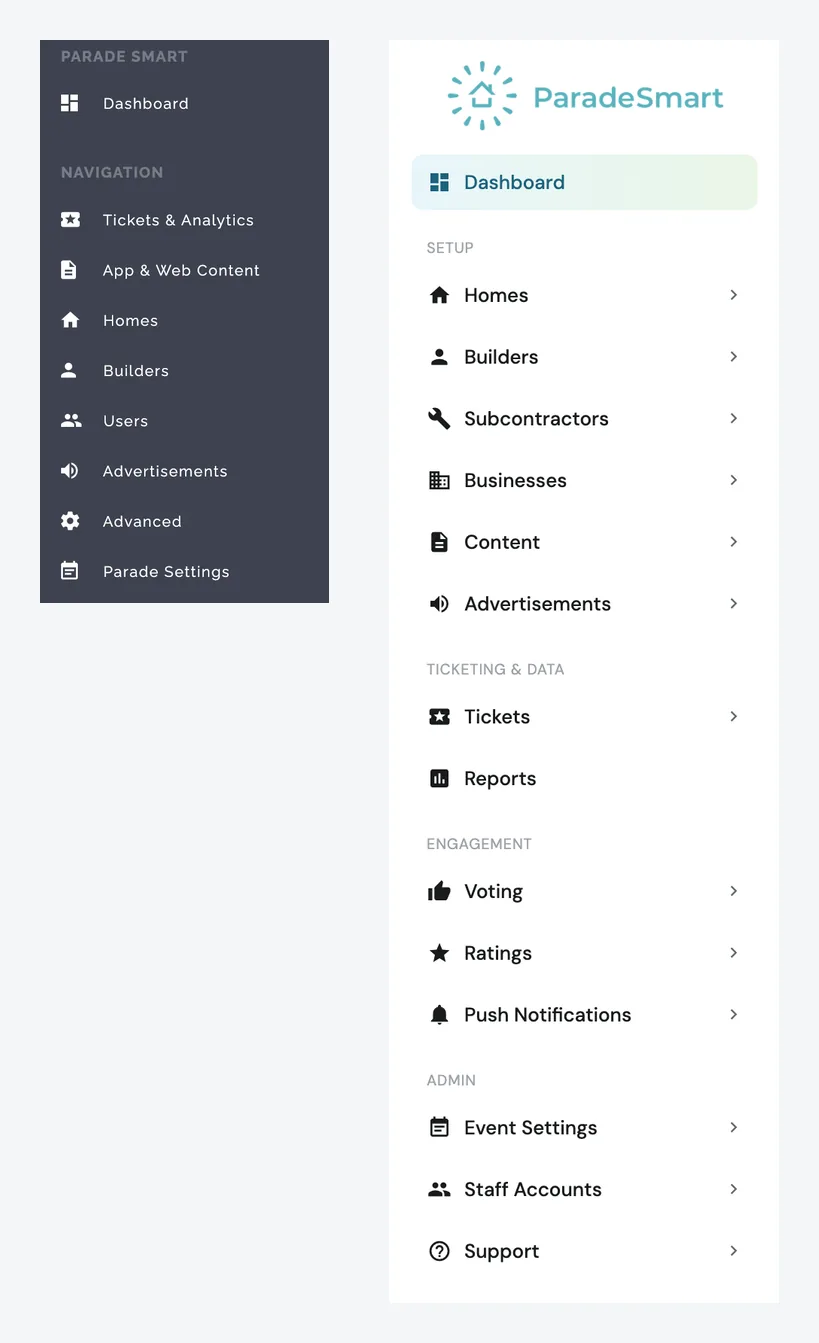
- Setup: Homes, Builders, Subcontractors, Businesses, Content, and Advertisements
- Ticketing & Data: Tickets and Reports
- Engagement: Voting, Ratings, and Push Notifications (an extra feature)
- Admin: Event Settings, Staff Accounts, and Support
A few familiar pages have new names:
- Tickets & Analytics is now two items: Tickets and Reports
- App & Web Content is now Content
- Users is now Staff Accounts
- Parade Settings is now Event Settings
Looking for something specific? The Dashboard Cheat Sheet is organized by the old menu. Find the part you remember, and it tells you exactly where to click now.
Goodbye, Legacy Update Screen
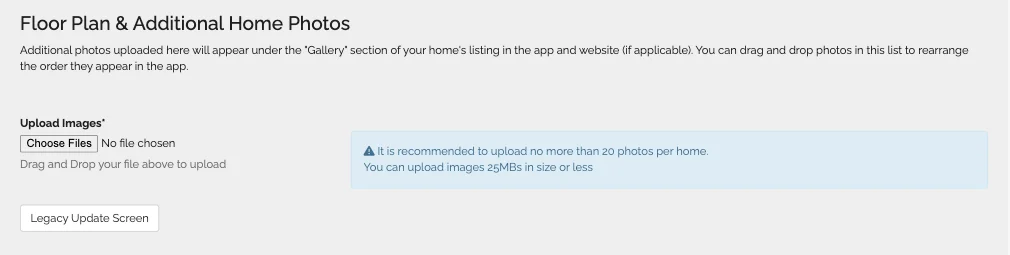
If you know about this button, you’ve gotten deep into the Dashboard trenches. If you’ve never heard of it, you’re not alone. Most people haven’t, which is exactly why it’s going away. Everything you used to do there, like changing which builder a home belongs to, now happens right on the Edit Home page.
Highlights worth knowing
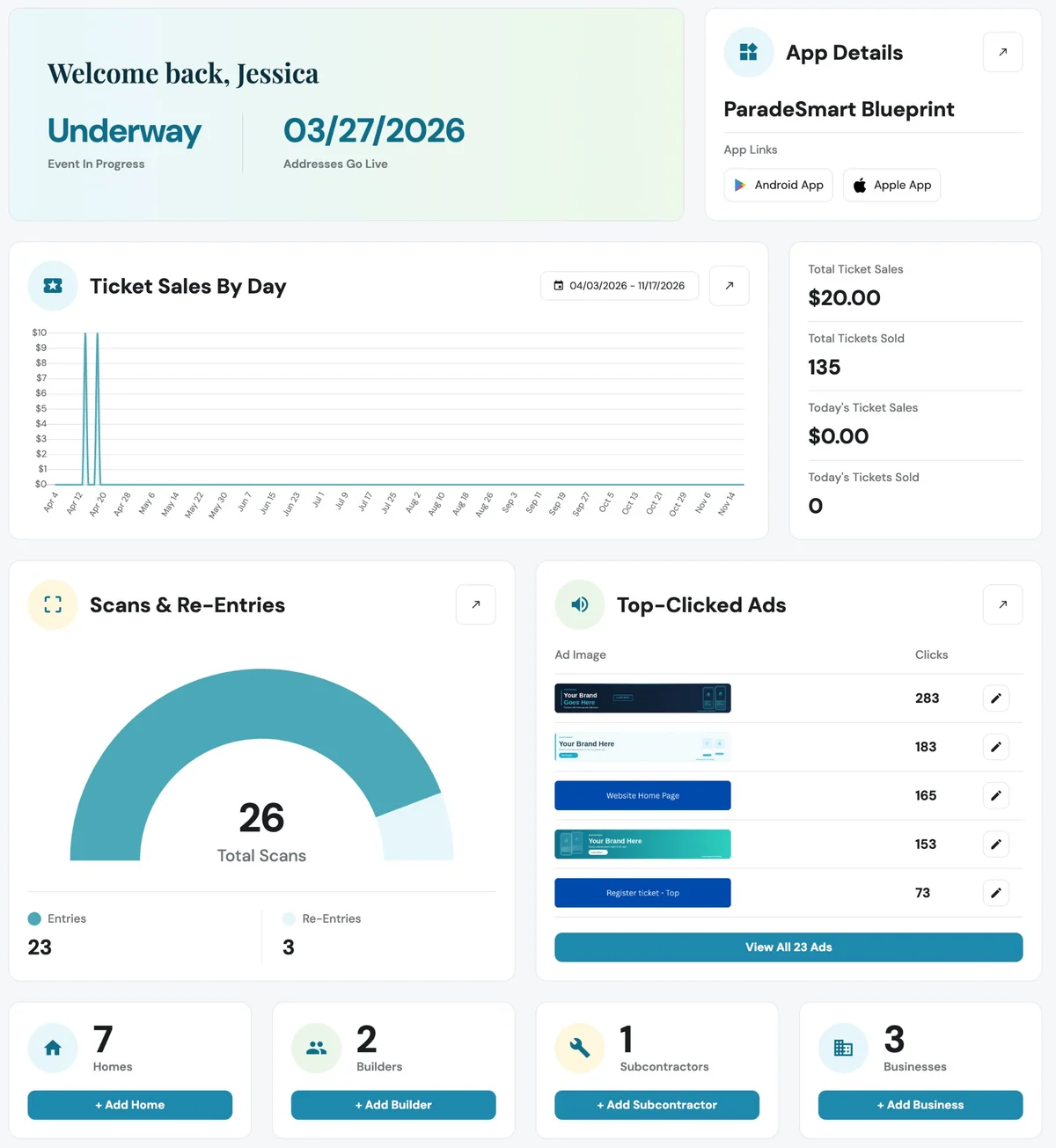
A home screen that shows your event at a glance. When you log in, you’ll see whether your event is upcoming, underway, or ended, plus ticket sales by day, scans and re-entries, your top-clicked ads, and your app links. Quick buttons at the bottom (+ Add Home, + Add Builder, + Add Subcontractor, and + Add Business) get you started in one click.
Always know which event you’re in. The top of every page shows your active event and its dates. Past events are marked Historical, and Change Event switches to a previous event’s data from the top of any page or from the blue event box in the sidebar.
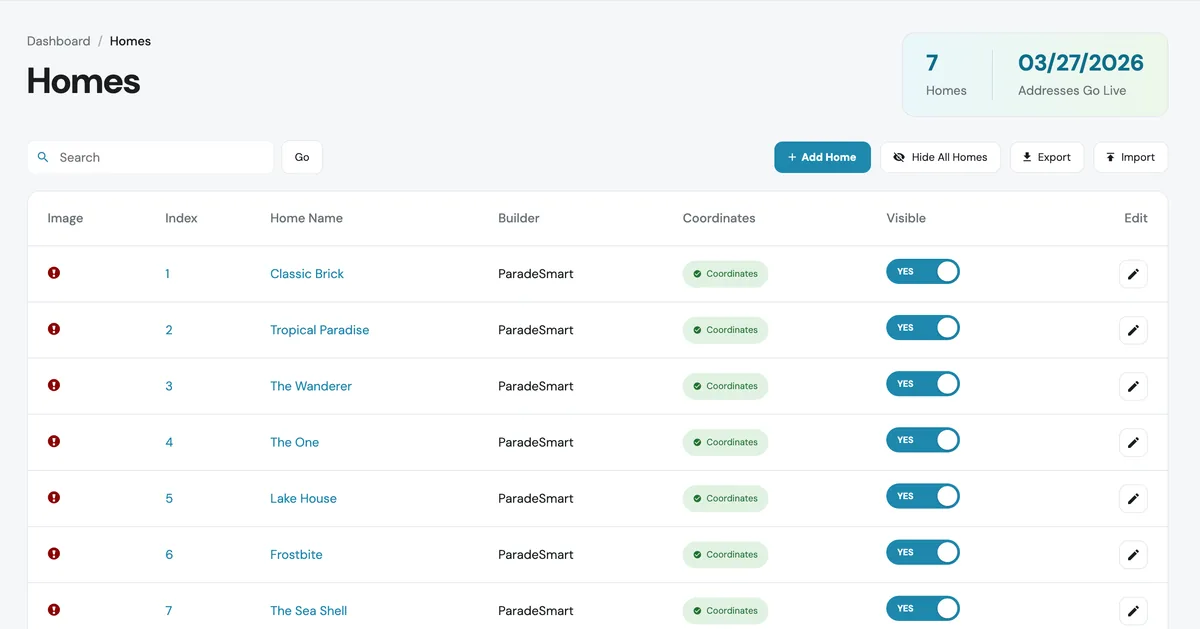
Homes are easier to manage. Each home has a Visible toggle (Yes or No), and Hide All Homes hides everything at once, with a confirmation first.
Builder passwords live on the builder. Set or reset a builder’s login right on their profile with the Change Password field. You can still do it from Staff Accounts too.
Breadcrumbs on every page. The trail above each page title (like Dashboard / Homes / Traits) shows exactly where you are and takes you back up a level.
Buttons that work the same everywhere. + Add on every list, ← Back to on every add and edit page, a pencil to edit, and a trash can to delete.
Help without leaving the Dashboard. Click Support in the sidebar, then Contact Support right under it. Your message comes straight to our inbox, so you don’t have to write your own email. You can always email us at support@paradesmart.com too.
Where to go from here
Our Help Center has been updated to match the new Dashboard. Start with the Dashboard Cheat Sheet if you’re looking for something specific, or the Getting Started guide if you’re setting up a new event.
