ParadeSmart clients can manage their own event settings directly in the Dashboard.
This gives organizers more flexibility, faster control, and the ability to make changes instantly, without needing to contact our team for manual updates.
A quick note on names: with the new Dashboard, Parade Settings is now called Event Settings, and the Plottable Date is now called Addresses Go Live. They work the same way, just with clearer names.
What Can You Update?
In Event Settings, you can adjust:
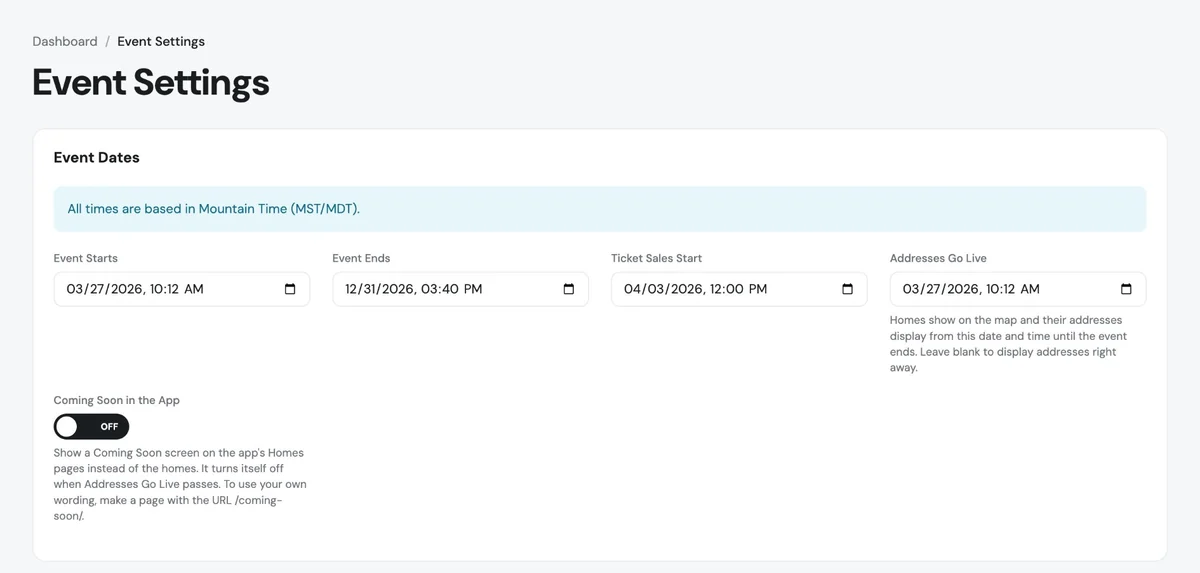
- Event Starts and Event Ends: when your event officially begins and ends
- Ticket Sales Start: when online ticket sales open to the public
- Addresses Go Live: when home addresses and map pins become public. They stay up until your event ends.
- Logo: your event logo, which updates in the app and the Dashboard right away. We suggest a transparent PNG, so your logo doesn’t show up with a box or square behind the letters.
- Voting and awards settings: the minimum number of homes a visitor must visit before voting, how long voting stays open after the event, and whether visitors can only vote for homes they visited
- Analytics and tracking codes: like Google Analytics, Google Tag Manager, and Meta Pixel (if ParadeSmart hosts your event website)
- Coming Soon in the App: a new switch that shows a Coming Soon screen on the app’s Homes pages instead of your homes. It turns itself off when Addresses Go Live passes. To use your own wording, make a page with the URL /coming-soon/ under Content (Pages) in the Dashboard.
How to Open Event Settings
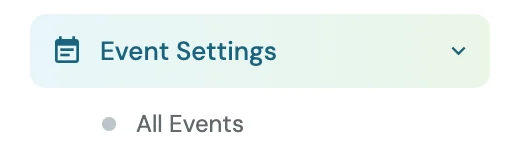
Click Event Settings in the Admin section of the Dashboard sidebar. Every setting is on one page.
A few things to keep in mind:
- All times are Mountain Time (MST/MDT), since our servers are in Utah. Adjust if your event is in a different time zone.
- Changes aren’t saved automatically. Scroll to the bottom of the page and click Save Settings when you’re done.
Why Addresses Go Live Is a Big Deal
Before clients could manage this themselves, changing when addresses became visible meant reaching out to our team so we could update it behind the scenes.
Now you control it yourself, in real time. Until the Addresses Go Live date, homes that are visible still show in the app and on your website, just without their addresses or map pins. From that date, addresses and map pins show until your event ends. If you leave it blank, addresses show right away.
Need to test your map before homes officially go live? Change Addresses Go Live to today, preview and test your map, then change it back when you’re finished.
Voting and Awards Settings
If your event has People’s Choice voting, the Voting / Awards section controls how it works:
- Minimum homes visited required to vote: how many homes a visitor has to tour before they can vote
- Days after the event has finished that voting will be closed: how long voting stays open once your event ends
- Only allow voting on homes that were visited: when it’s on, visitors can only vote for homes where their ticket was scanned

For the full voting setup, see Voting, Ratings & Push Notifications in the Help Center.
Adding Analytics and Tracking Codes
If ParadeSmart hosts your event website, you can add your own tracking codes. Paste the complete snippet, including the script tags, into the analytics field. Click Add another analytics code to add more than one.
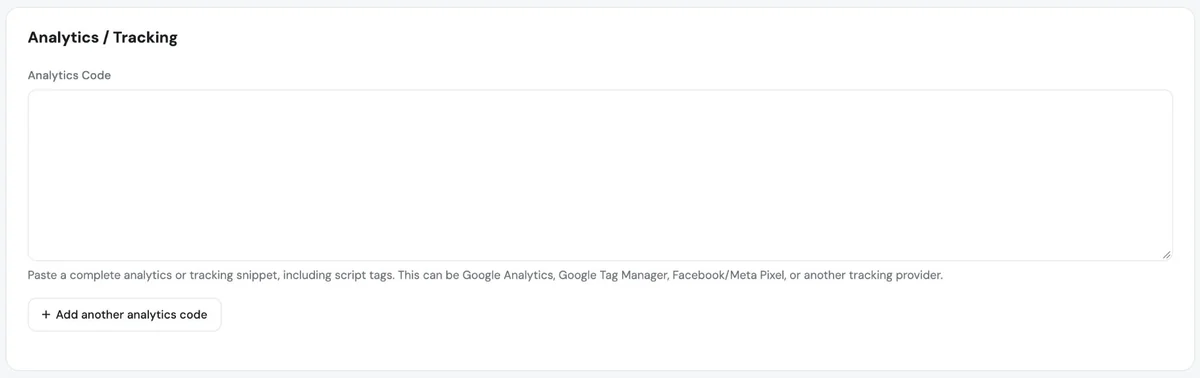
Analytics codes are only added to your event website. They don’t go into your event app.
More Flexibility, Less Waiting
Parade timelines can change quickly, especially leading up to launch day. Having direct access to these settings means:
- Faster updates
- More independence
- Easier testing and troubleshooting
- Less back-and-forth
- Better control over your event
- Direct access to analytics and marketing tools
Our team is still here to help whenever you need us. For more detail on every setting, see Event Settings in the ParadeSmart Help Center.
