Table of Contents
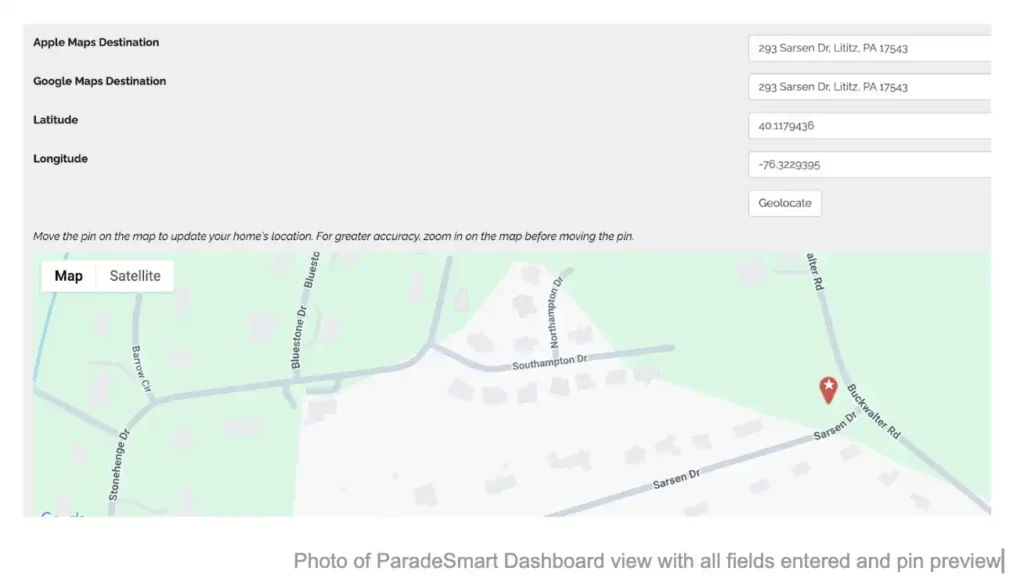
These fields are helpful when a home’s GPS coordinates aren’t recognized by Apple or Google Maps—often the case for new roads or developments. When this happens, the directions button may not pull up the correct location. Adding a backup address can help.
How It Works #
- If a Google or Apple destination address is entered, the app will try to use that address first when a user taps “Directions.”
- If the address cannot be resolved, the app will default to the GPS coordinates (read about adding regular GPS coordinates here).
- If no address is entered, the app will always use GPS coordinates only.
Our Recommendations #
- Always enter GPS coordinates – this is the most accurate and reliable method.
- Only use the Google/Apple destination address fields if:
- The home is new or hard to find on maps
- You’re seeing inaccurate directions during testing
- Test both iPhone and Android devices, as Apple Maps and Google Maps may behave differently.
- How to test: Login to your app with your admin account and click the map to see home pins. If the address is recognized, it will be used. If not, the app will fall back to the original GPS coordinates.
Real-Life Example #
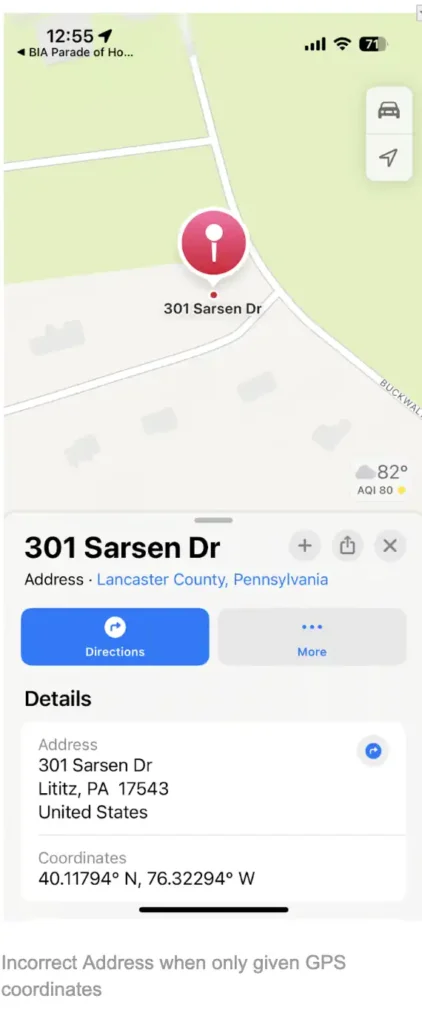
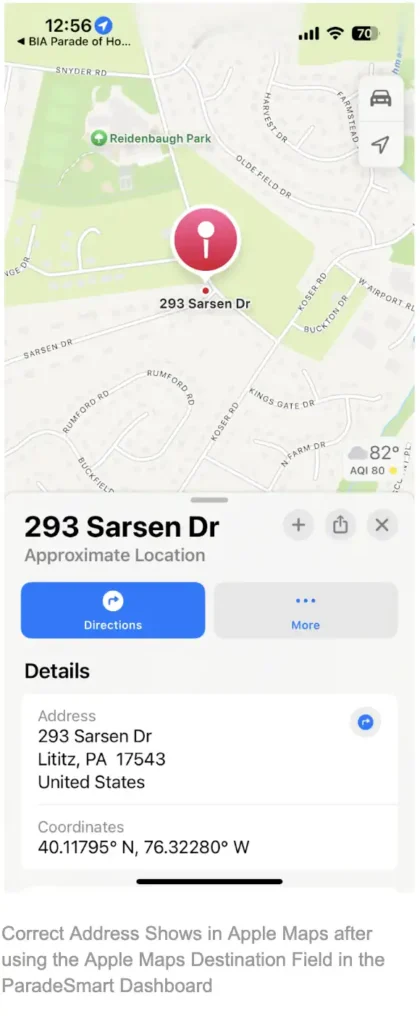
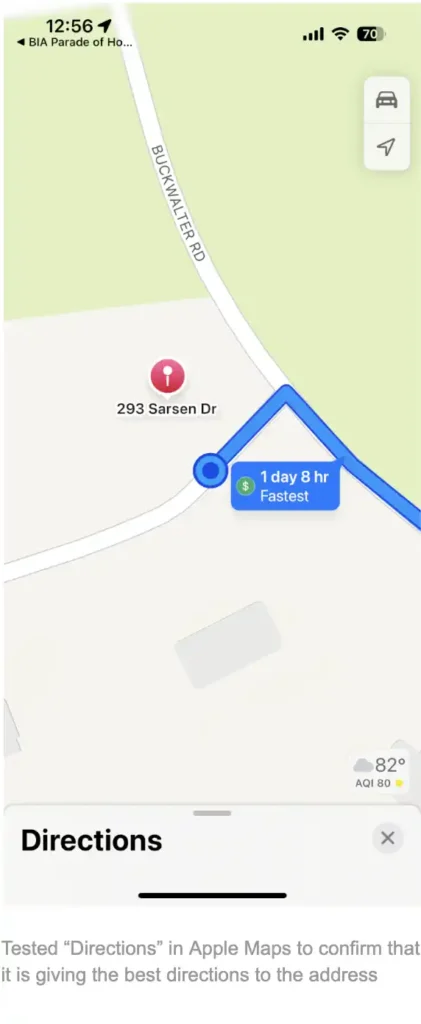
A home in Pennsylvania had GPS coordinates that directed users to 301 Sarsen Dr in Apple Maps—but the actual home was 293 Sarsen Dr. We added the correct address to the Apple Map field in the dashboard. After doing that, Apple Maps used the address and got users much closer to the right location.