
Table of Contents
Any client can add subcontractors individually or upload a CSV File of subcontractor information.

Prepare Your Spreadsheet #
Prepare a CSV file in excel, sheets, or google sheets. Make sure to save as a .CSV file.
Use the top columns any or all of these fields listed below. The first three are required.
Make sure to name them the same exact title, not a variation of these titles!
- Company Name
- There is an * on the list (see screenshot below). Please don’t include this * in your spreadsheet column header
- Contact Name
- Website
- Please include the “http://’
- Address
- Phone
- About
- Member
- Is this contractor a member of your HBA? Put “yes” in this column if they are
- Job
- The job they performed at a home (please ensure you specify a builder or home)
- Builder
- this is the builder they contracted for, adding this column will list this subcontractor in all the builder’s homes
- Home
- This will assign the sup-contractor to the home built by the given builder
Import Spreadsheet #
- Go to the ParadeSmart manager
- Click “Advanced,” then scroll down and click “Subcontractors”
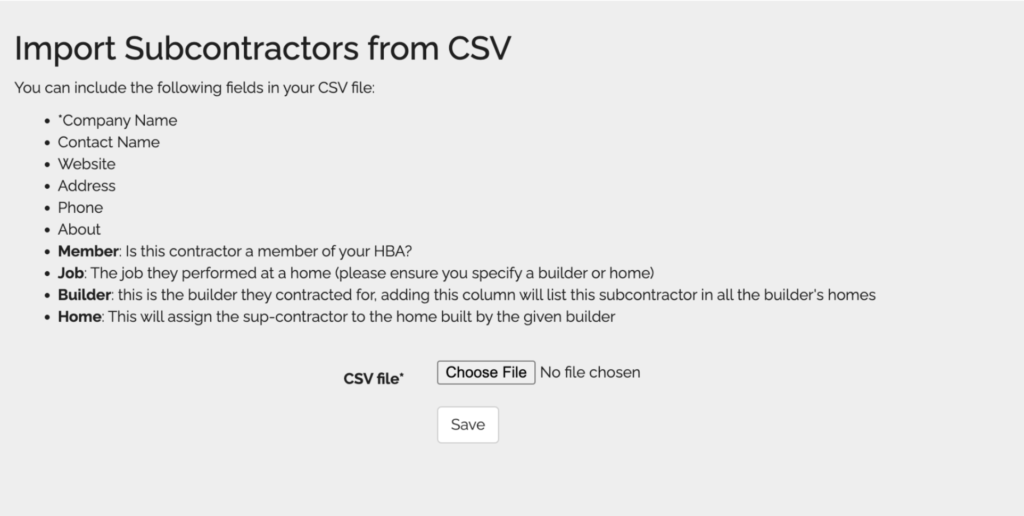
- To upload a file click “import” (To create a new subcontractor individually, click “create” and add information. )
- Choose file and upload. It should take a minute
- If the upload fails or gives errors, there is probably something small and technical in your file that confuses the system. Check for the following:
- Spelling errors
- Differences between the column titles and how they’re listed
- Extra commas in numbers
- Try using zeros instead of blank cells
- Try deleting a column that gives you errors (enter that information manually after upload)
- Try uploading in chunks of 100 lines or less


