Table of Contents
Clients with ticketing have access to review or change all the data collected in with each ticket purchase.
About Customer Tickets #
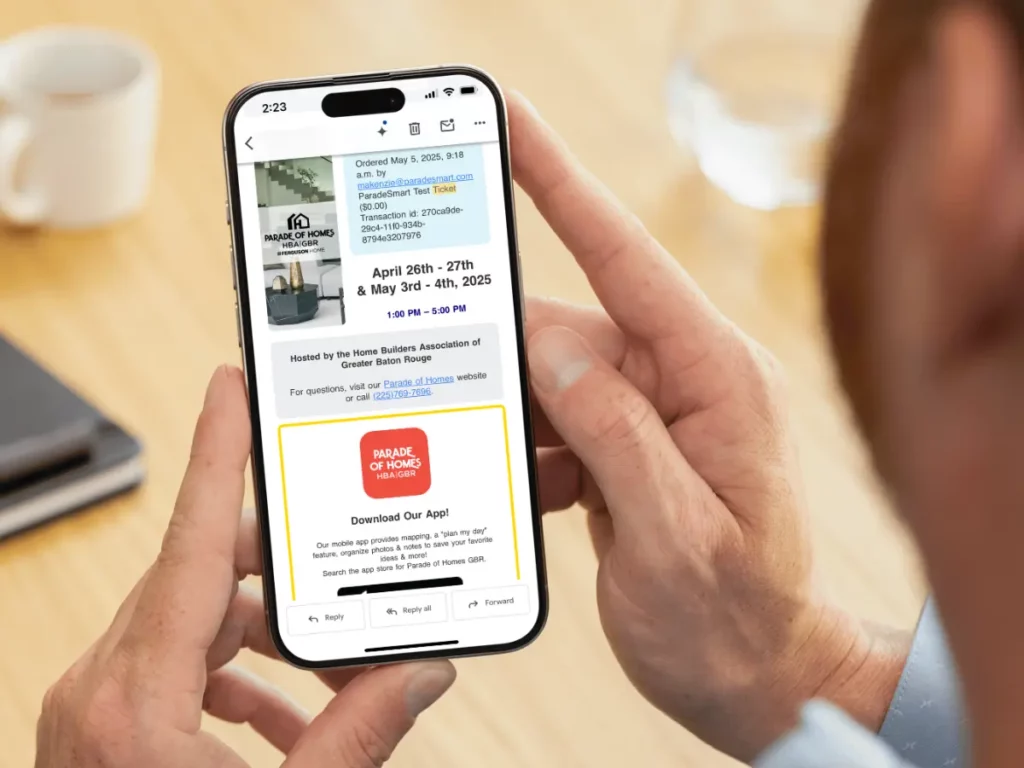
When a customer buys a digital ticket, our system collects the demographic information and saves it with the ticket log. Their ticket QR code and receipt are sent to their email for them to use at homes, but you can still go into the ParadeSmart Manager and make changes.
How to Find a Customer’s Ticket #
- Go to the ParadeSmart manager
- Click “Tickets & Analytics,” (https://app.paradesmart.com/manage/tickets )
- You can search in the top search bar for any of the customer’s information, such as:
- Transaction id
- Customer email
- First name
- Last name
- Ticket number
- Address
- Phone
- Locate the correct ticket in the search results list. Click on the ticket number to find more information or make edits
Edit a Ticket #
- Once you’ve located the correct ticket, click on the ticket number to find more information or make edits
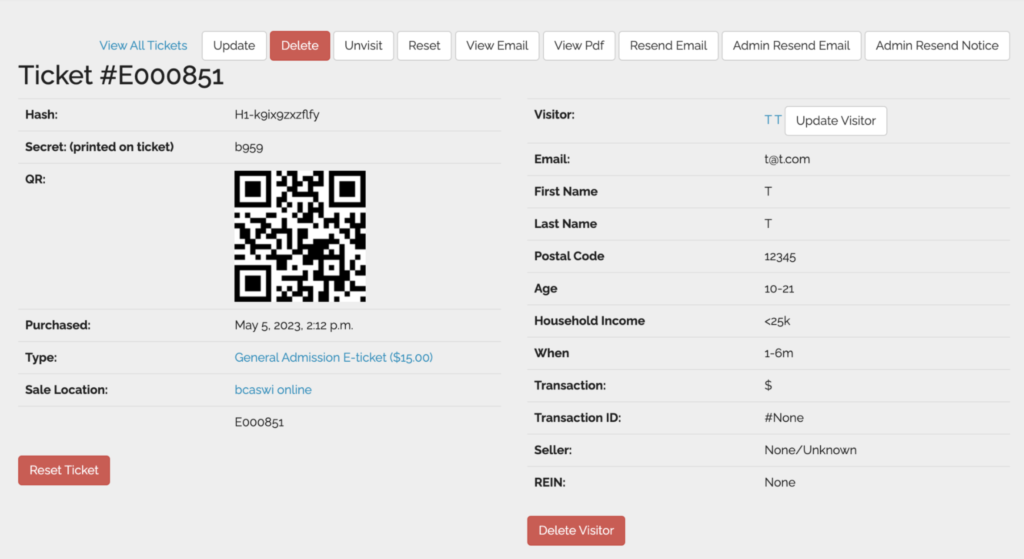
- Find your helpful information on this page. You can also click any of the buttons at the top to do further actions like these:
- Delete the ticket from our system (the QR code will no longer grant home access)
- Resend the customer email
- View what the ticket looks like
- Update the visitor information (such as name, email, ticket type, etc)
- Resetting the ticket will make it as though it was never purchased. No info will be attached to it anymore, but the QR code will still grant home access).
- Warning: Please be cautious when using any red buttons, as they cannot be undone. If you delete info we can not get it back for you or the ticket holder.
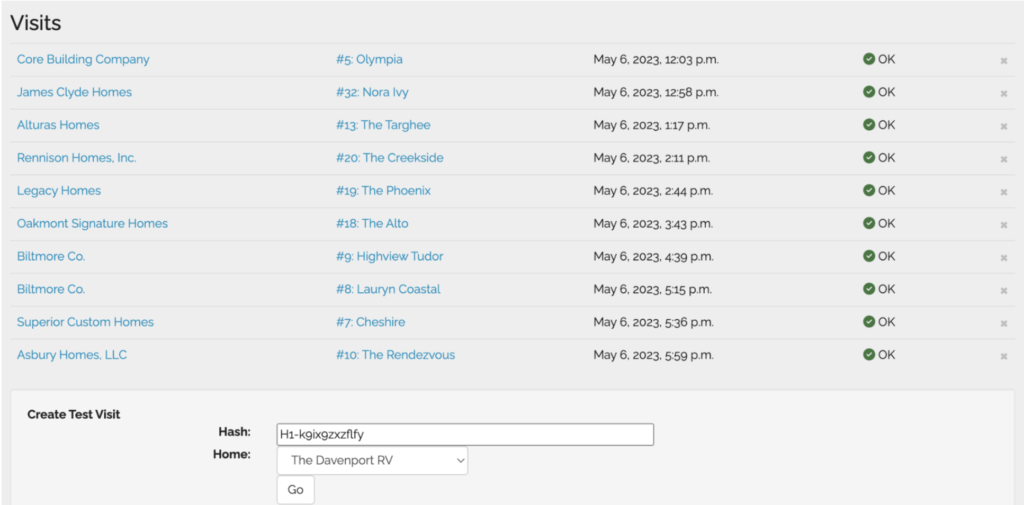
- The bottom section shows a list of every house at which the ticket has been scanned. You can also add more “visits” at the bottom of the list by selecting a home, and clicking go.